 Votel
Live meeting translation for MacFollow multilingual meetings
on your Mac.
Votel turns the meeting audio your Mac plays into real-time captions and translation, in a small window beside your call. No meeting bot joins. Afterwards, replay the recording and read the bilingual text on your Mac.
01Before the meeting
Choose computer audio
and languages.
Zoom, Teams, Google Meet and other meeting apps play their audio through your Mac. Votel captures that sound directly.
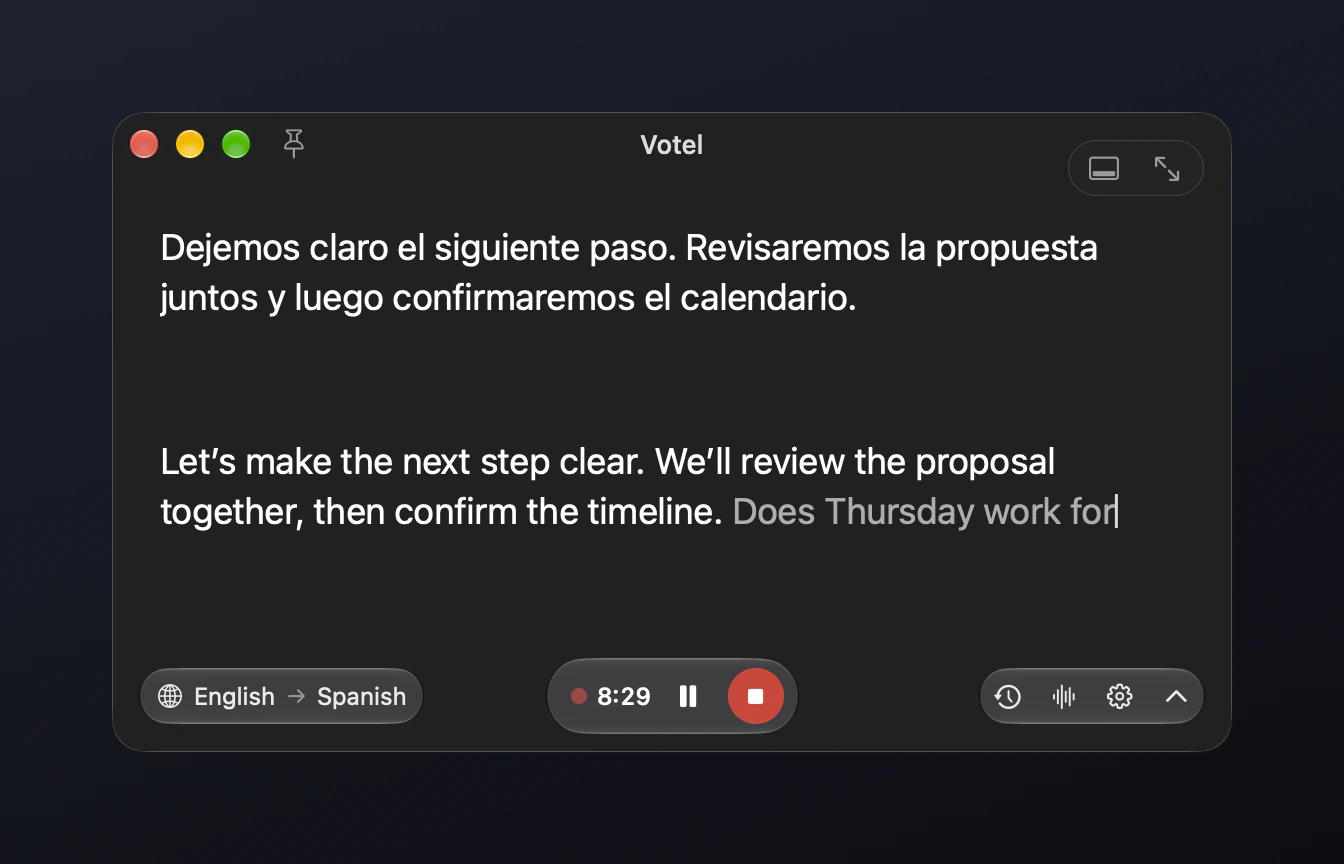
- Click the waveform button at the bottom to open What to Record. Choose Mic + System Audio to caption both the other side and yourself, or System Audio for the other side only.
- The first time, macOS asks you to allow Screen & System Audio Recording, and microphone access if you chose the microphone. Votel requests only what your chosen sources need.
- Set the spoken language, or leave it on Auto-detect, and pick the language you want to read.
- Before the real meeting, make a short test recording with your meeting app and replay it to check the audio and captions.
- Press Start Recording & Captions, or Space, to begin.
02During the meeting
Read real-time meeting captions
and translation as people speak.
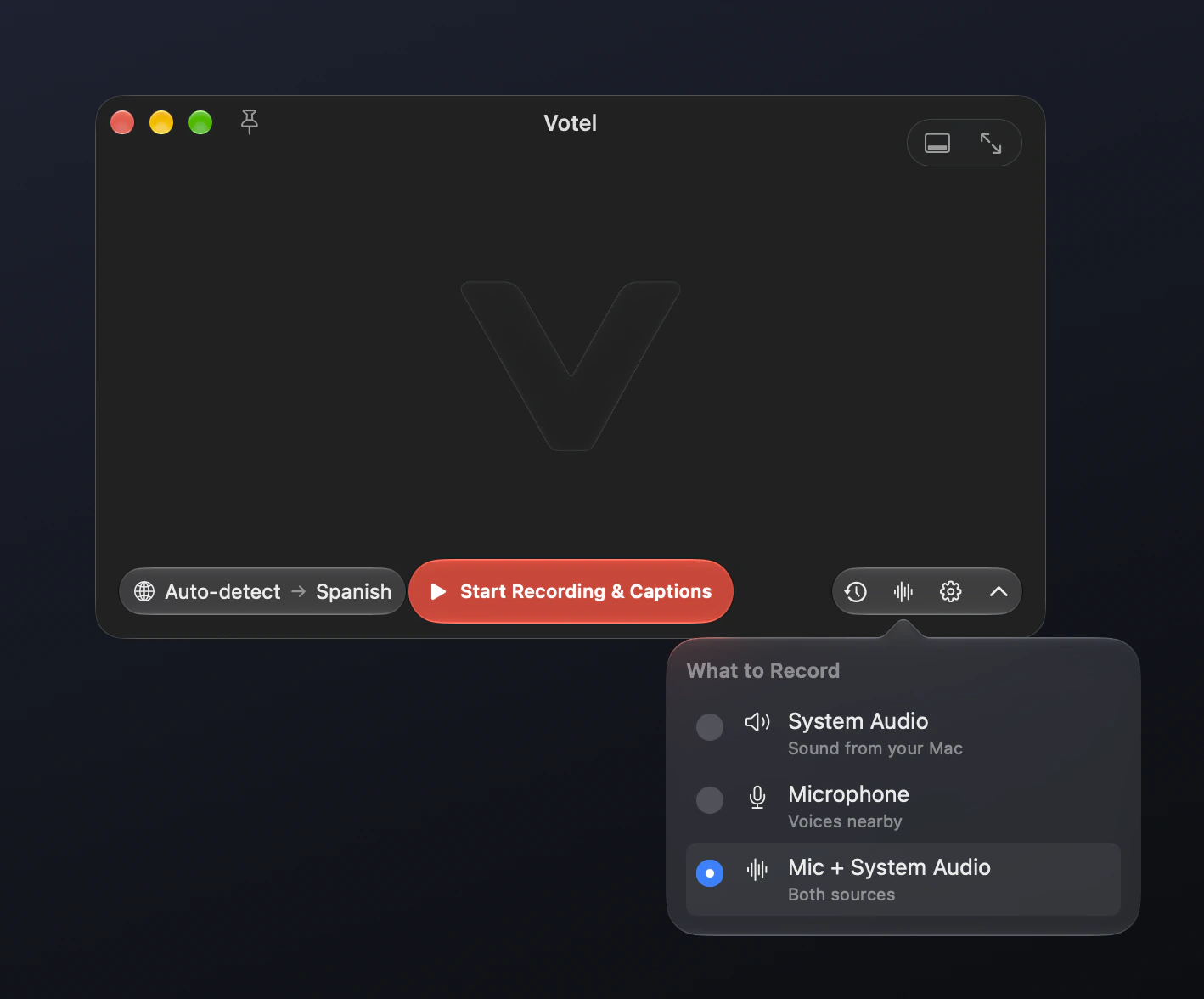
Each finished sentence is translated right away, with the translation above the original. Words show in grey while Votel is still listening and turn white once final; white text never changes.
- Click the pin or press ⌘T to keep the window above your meeting app.
- Only need the translation? Click the arrow at the bottom right to hide the original.
- Want bigger text? Stage Captions turns the window into a strip along the bottom of the screen, or press ⌘F for full screen.
- Pause captions when you need to; recording continues, but the paused section is not transcribed later.
03After the meeting
Replay the recording
and export M4A or TXT.
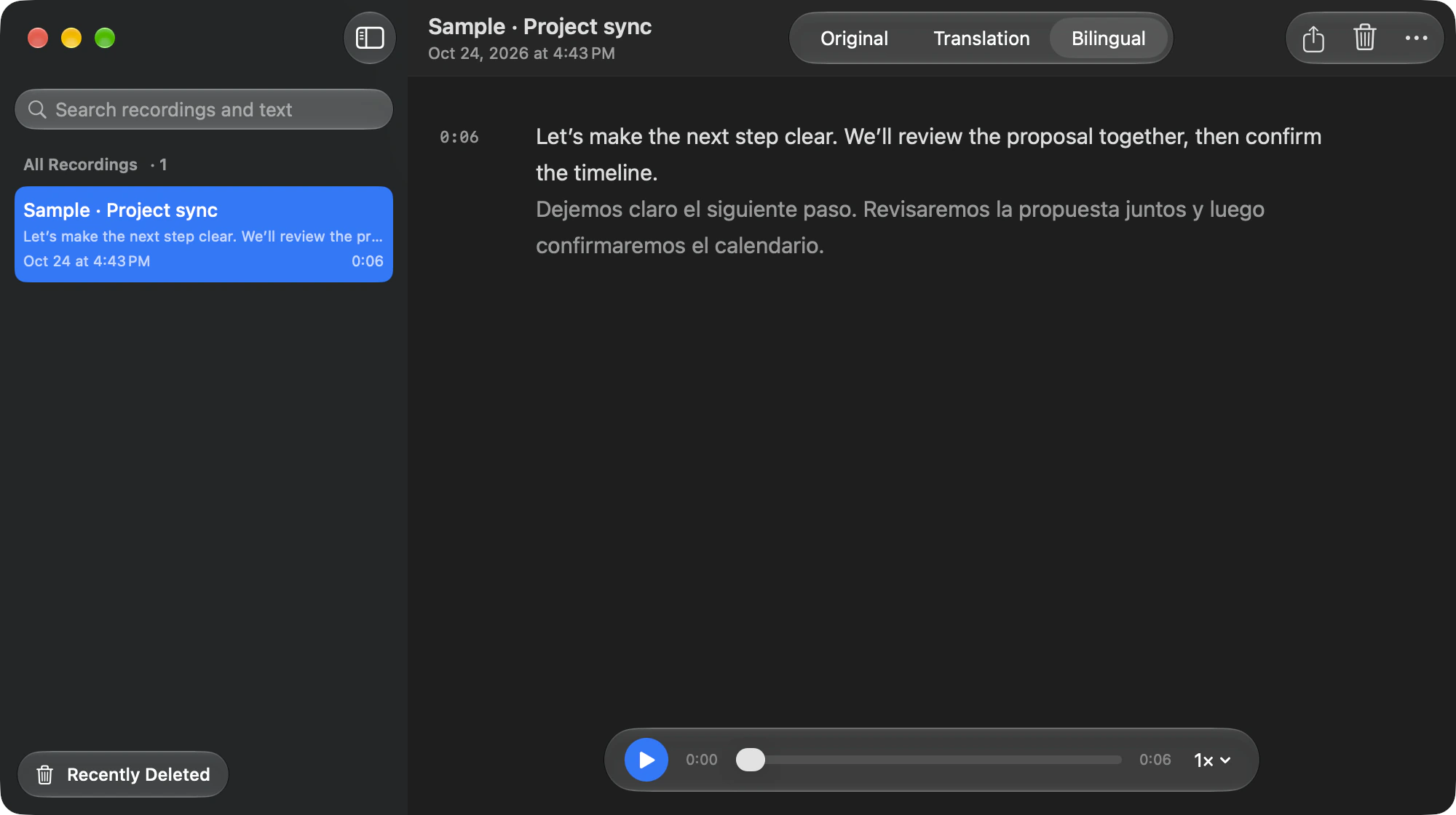
Every recording is saved on your Mac. Open Recording History with the clock button or ⌘H (⇧⌘H in full screen or Stage Captions).
- Replay at 0.75× to 2× and scrub to the part you need.
- Read the original, the translation or both side by side, line by line.
- Export M4A audio, or the original, translation or bilingual text as TXT.
04Good to know
Limits and permissions,
up front.
- Live captions and translation need internet. While they are on, the selected audio, recognized text and necessary context are processed online; the recording itself stays on your Mac. If the connection drops, the app tries to recover but cannot guarantee every missing caption.
- Votel doesn’t join the call, change your meeting app’s settings, or send captions or translations into the meeting.
- Not every meeting app, device and permission combination has been verified, so test with a short recording first.
- Get participants’ permission before you record, and follow the recording rules where you are.
- Accuracy varies with the language, accent and audio quality.
Free includes 45 minutes every UTC calendar month; every paid plan has the same features. See plans · Privacy & AI

Hear it. Read it.
Keep it.
Votel 1.0 build 24 is being tested through TestFlight. App Store review is in progress; public release has not started. The iPhone app is also in App Store review.