Live captions and translation for Mac and iPhoneFollow the meeting. Join the conversation.
Live captions and translation on Mac and iPhone. Understand every meeting, training session and talk in your own language, then replay it whenever you like.
Mac: macOS 13 Ventura or later, Apple silicon or Intel · iPhone: iOS 18 or later · Internet needed for live captions
SCENE 01A video call, with captions floating on topSCENE 02A panel on stage, with live translation on the screen behindSCENE 03At a training session, with captions full screen on your own MacSCENE 04Two people at a table, one column per language
Illustrated scenes · the app window in each is real
Votel works with many languages, including English, Spanish, French, German, Portuguese, Arabic, Hindi and Thai.
Translate into 100+ languages · Speech recognition in about 80 languages and regional variants · Auto-detect the spoken language
Built for people working across languages around the world. Online feature availability varies by region, network and service support.
01When to use it
When you can’t quite follow, open Votel.
Five everyday moments at work, and which mode and sound to pick for each.
FIG. 01
Mic + System Audio
Online meetings
What the others say and what you say both become captions, right beside the meeting window. Capture meeting audio played by your Mac without a meeting bot. Test your app, devices and permissions with a short recording first, and obtain participants’ permission.
Watching a conference talk, a training video or an interview on your Mac? Follow along in your language. Turn on Stage Captions and the translation runs along the bottom of the screen, like film subtitles.
FIG. 03
Classroom Mode · Microphone
Training and talks
Put your Mac on the desk and open Classroom Mode in full screen. The trainer’s words appear translated in large type on top, with the original underneath.
FIG. 04
Conversation Mode · Microphone
Face to face
Sit down with a colleague, client or partner who speaks another language. The screen splits into two columns, one language each, and every line appears on both sides. Turn the screen around and swap sides with one click.
FIG. 05
Recording History
Look back later
Every recording is saved on your Mac. Listen again, read the original and the translation side by side, and export the audio or text.
02Live captions
Words appear as people speak, and stay put.
What Votel just heard shows up in grey, then turns white once it’s sure. White text never changes, so you can keep reading without the words jumping around. Each finished sentence is followed by its translation.
White — final, won’t change
Grey — still listening
Translation — appears above when a sentence is done
Votel
Hoy revisaremos el plan de entrega del proyecto.
Primero, confirmemos el alcance y las responsabilidades.
First, let us confirm the scope and responsibilities.
The design review is scheduled for Thursday.
English→Spanish8:29
Animated illustration · example text
Illustration: English words appear one by one, turn white once settled, and the Spanish translation appears above.
More than captions
Translated as it’s spoken
Each sentence is translated the moment it ends, not after the meeting.
Two languages, one screen
Read the original and the translation together, or give each person their own column.
Still there afterwards
The recording and its bilingual text stay on your Mac to replay and export.
No meeting bot
Votel captures the sound your Mac plays, so no bot joins your call.
03In training · Classroom Mode
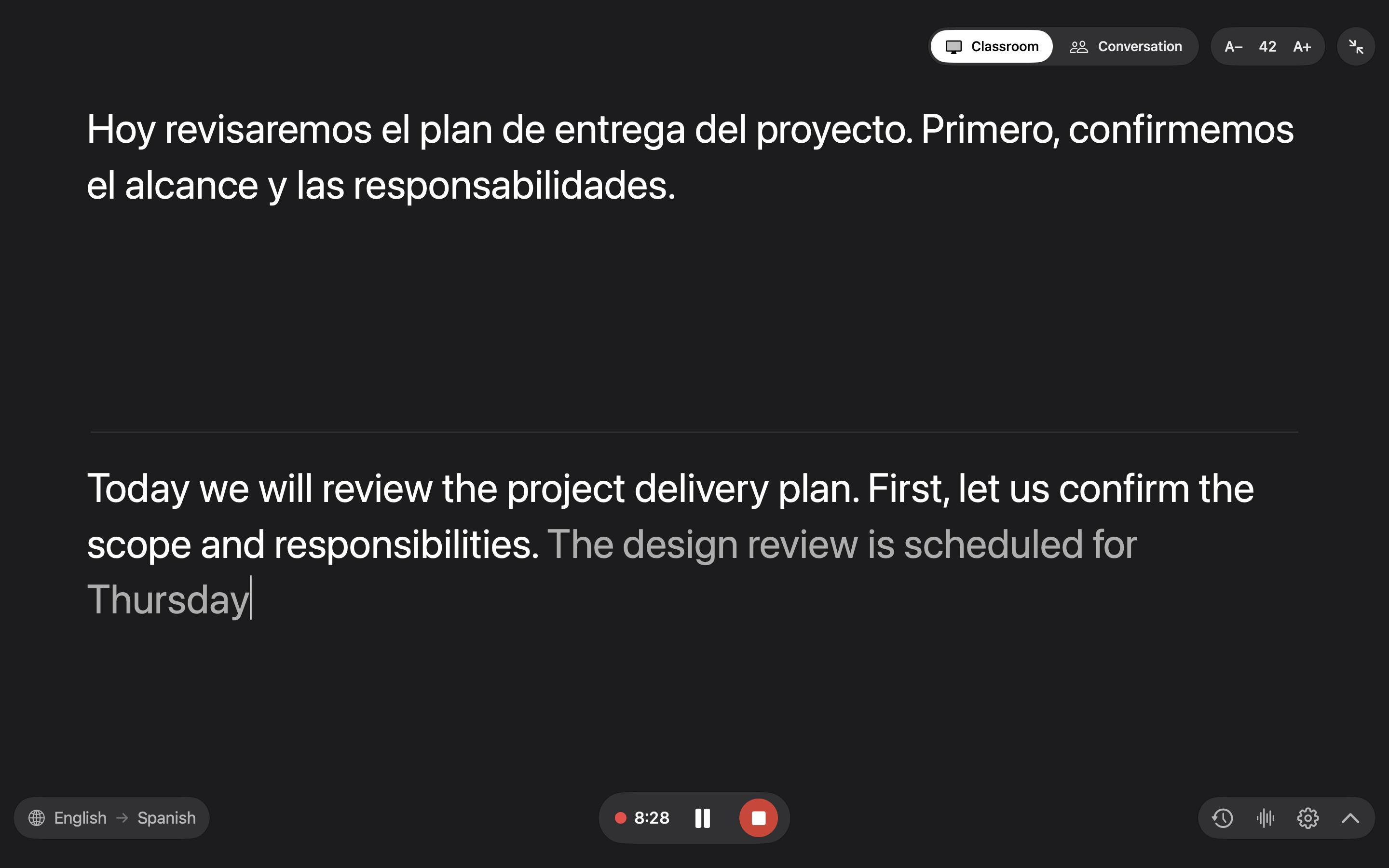
Follow the whole session in big, easy type.
The translation sits on top in the largest type, with the speaker’s own words below. Press ⌘F for full screen and make the text as big as you like.
12345678
Plate I — Full-screen Classroom ModeReal app view · example text
Translation on topClassroom Mode puts the translation first, in the largest type.
White and greyWhite words are final; grey words are still being heard.
LanguagesPick the spoken language and the language you want to read.
Recording controlsPause live captions while recording continues, or finish and save.
Mode switchChoose Classroom Mode or Conversation Mode.
Full-screen Caption SizeClick A− or A+ to step the size, or press ⌘+ and ⌘−. ⌘0 returns to the default size.
Exit Full ScreenOr press ⌘F to enter and leave full screen.
History · What to Record · Settings · HideThe clock opens Recording History, the waveform picks What to Record and the gear opens Settings. The arrow hides the original so only the translation remains.
04Business conversations · Conversation Mode
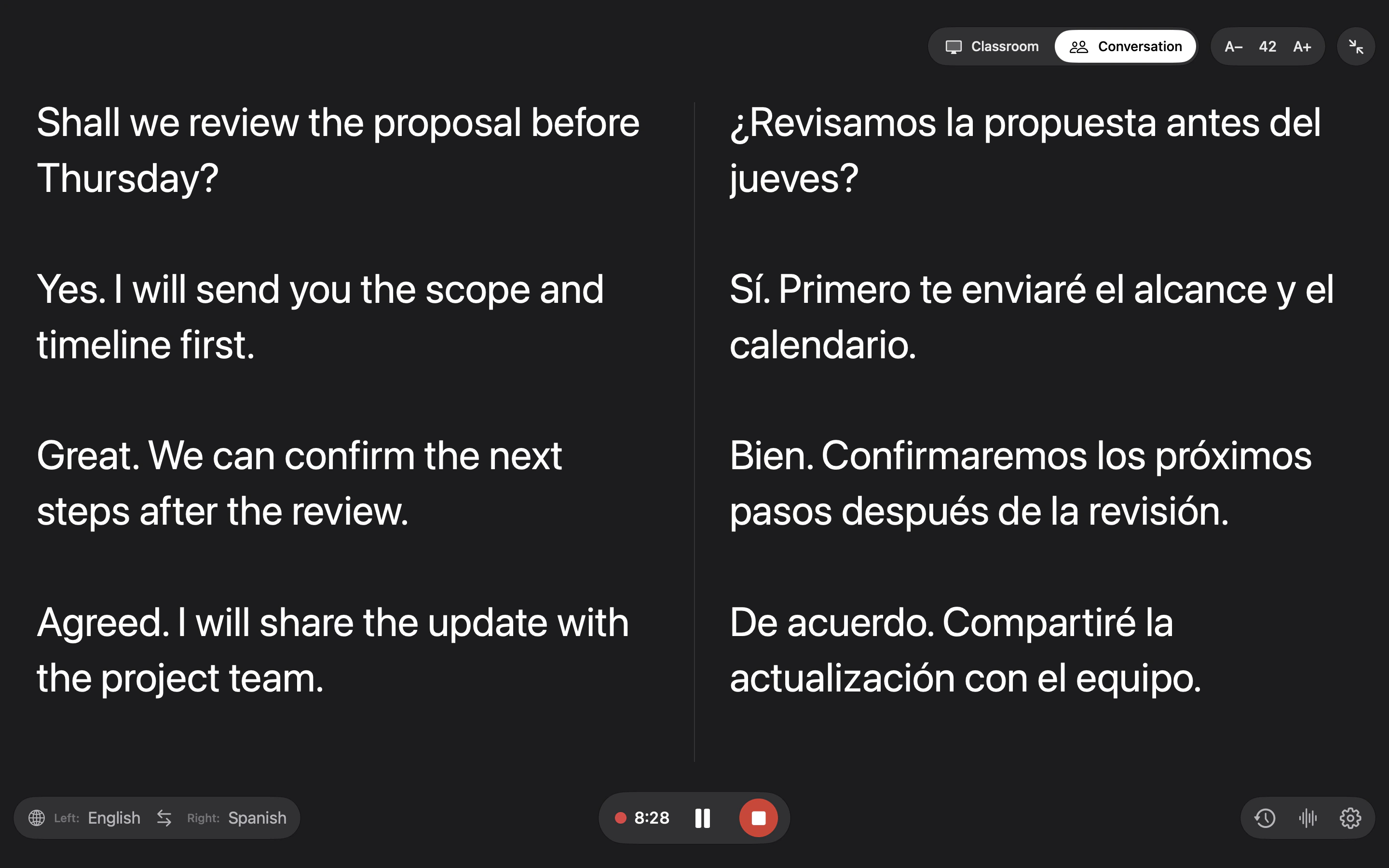
Two people, two languages, one screen.
Each language keeps its own column. Whoever speaks, the line shows up on both sides, each in its own language. Turn the Mac toward the other person and swap sides with one click.
12345
Plate II — Full-screen Conversation ModeReal app view · example text
Fixed columnsEach column always holds one language. Whoever speaks, the line appears on both sides.
Swap Language PositionsClick ⇆ in the language bar or press ⇧⌘X to put each language on the side nearest the person reading it.
Left and right languagesChoose a language for each column, or let Votel detect which of the two is being spoken.
Conversation ModeSwitch here and the screen becomes two fixed language columns.
Same recording controlsPause live captions while recording continues, or finish and save.
05Alongside other apps · Compact window
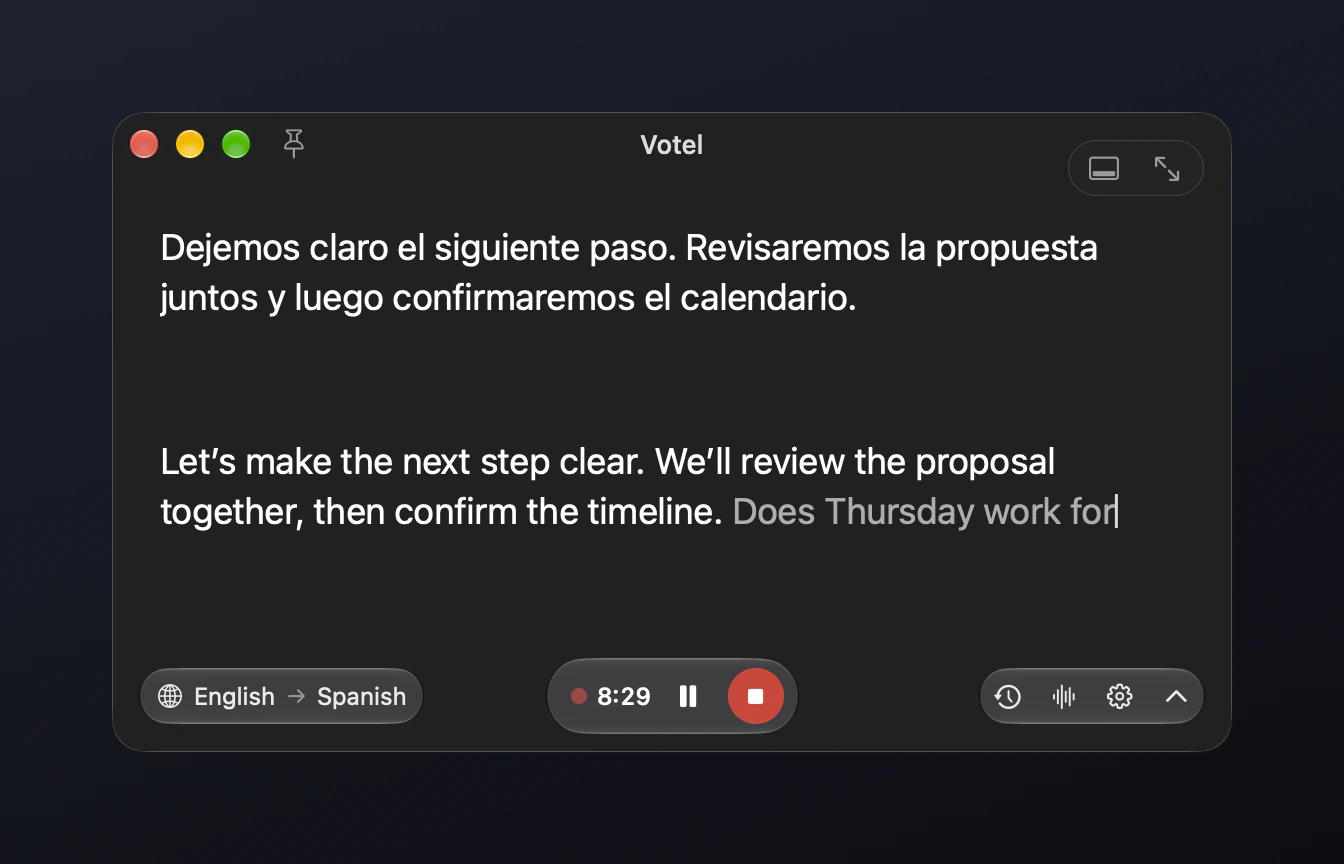
Small enough to sit beside everything else.
You don’t always need the whole screen. The compact window keeps captions in a corner, above your slides, notes or call. Only need the translation? Hide the original with one click.
1234567
Plate III — Compact windowReal app view · example text
Keep on TopClick the pin or press ⌘T to float the window above other apps.
Translation on topThe translation leads in the window too, with the original below.
LanguagesChoose the spoken and translated languages, or let Votel auto-detect the spoken one.
Recording controlsStart, pause live captions while recording continues, or finish and save.
Stage Captions · Full ScreenThe left button turns the window into a caption strip along the bottom of the screen; the right one enters full screen (⌘F).
Still listeningGrey words are still being heard and turn white once final.
History · What to Record · Settings · HideOpen Recording History, choose What to Record, open Settings, or hide the original text to read the translation alone.
What it listens to
System Audio
Meetings, videos, podcasts: whatever your Mac is playing. The first time, macOS asks you to allow Screen & System Audio Recording.
Microphone
Your voice and the people around you: in a lecture hall, at a counter, around a table.
Mic + System Audio
Both together, for calls: you hear the other side and yourself.
Setup requests only the selected sound sources: microphone first when needed, then system audio. If macOS asks to quit and reopen, setup resumes without starting a recording. Finish the current recording before changing sources. No sound? Get help →
06Recording History
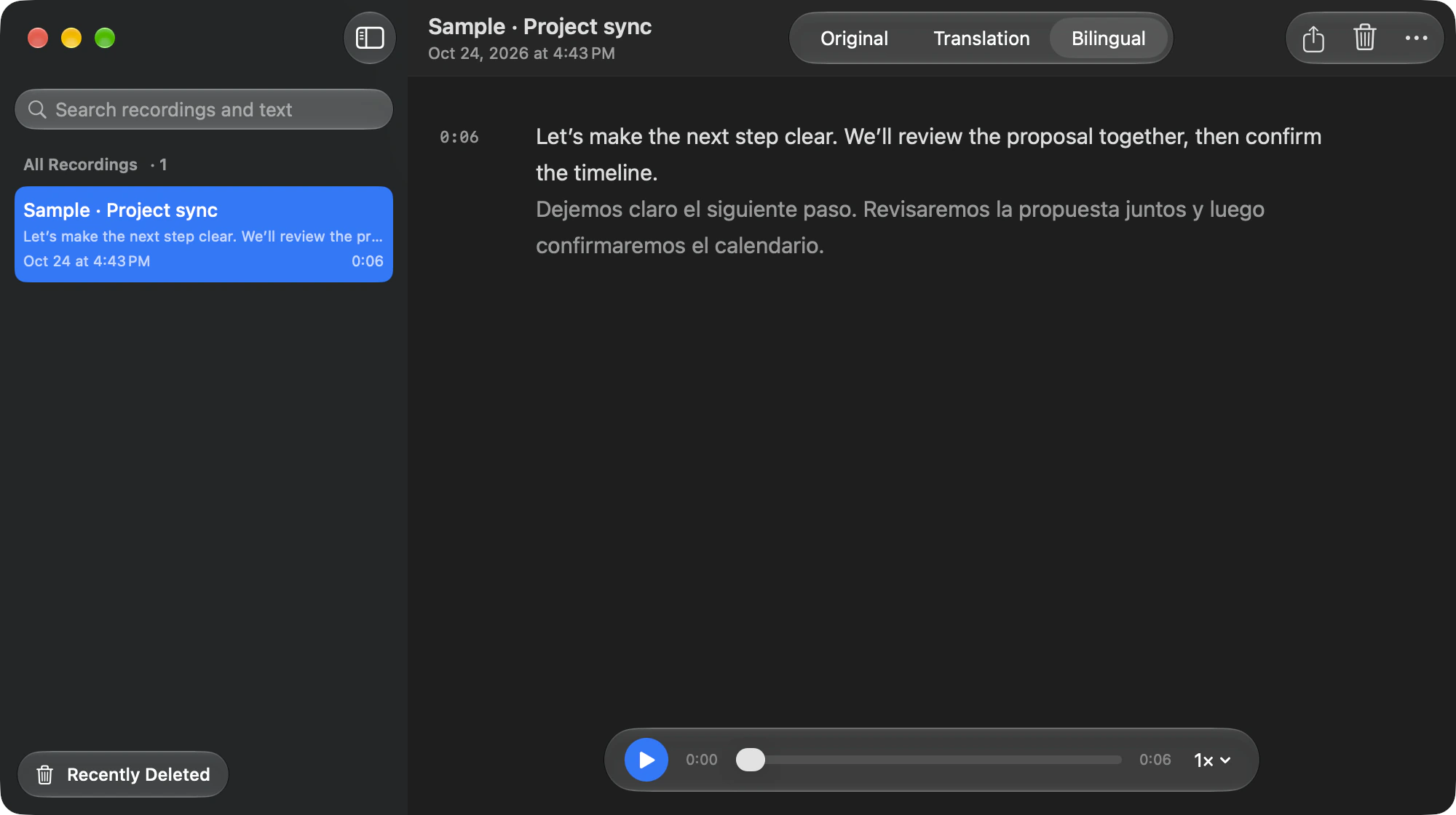
Every session, kept on your Mac.
Open it with the clock button at the bottom, or ⌘H in the compact window (⇧⌘H in full screen or Stage Captions). Listen again at your own pace, read the original, the translation or both side by side, and export what you need.
Bilingual textEach original line paired with its translation, easy to check.
PlaybackPlay, pause and scrub through the recording.
All Recordings / Recently DeletedThe sidebar lists All Recordings. Recently Deleted, at the bottom left, holds deleted recordings you can restore.
Original / Translation / BilingualChoose how you want to read the transcript.
Playback speedFrom 0.75× to 2×, slower or faster as you need.
07iPhone
In your pocket, ready to follow.
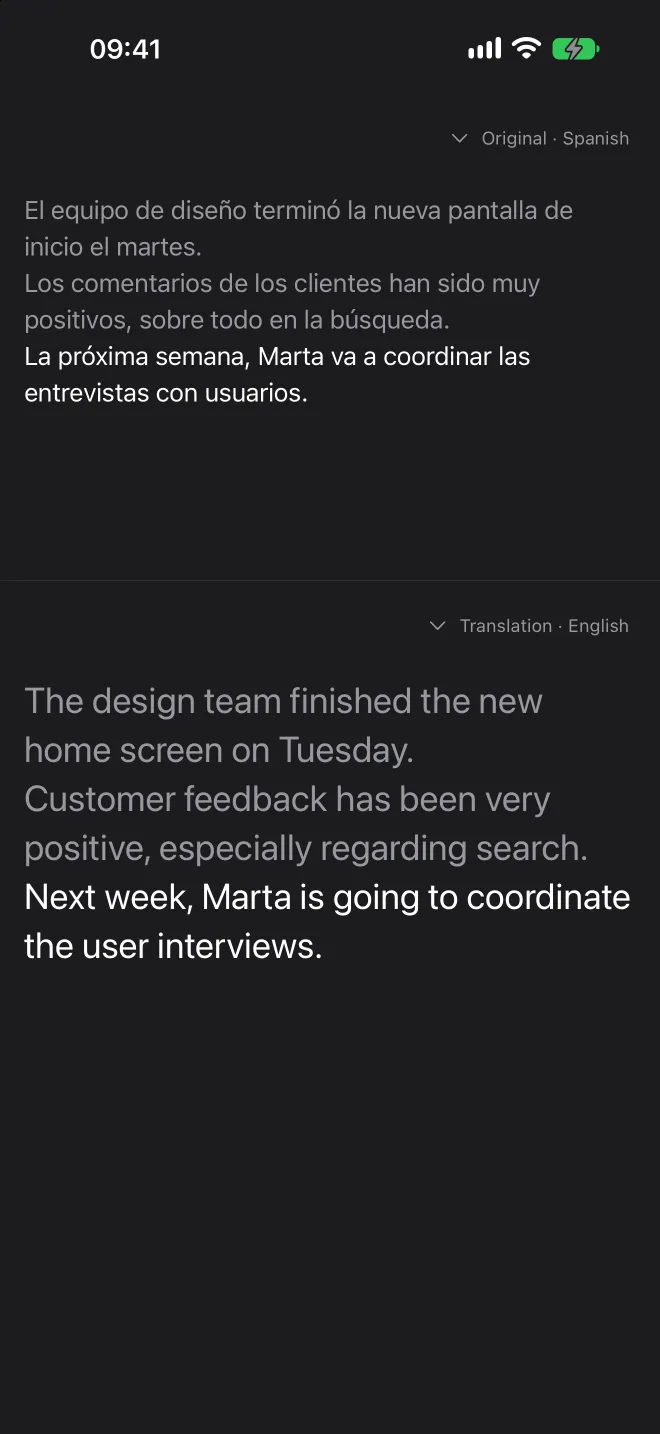
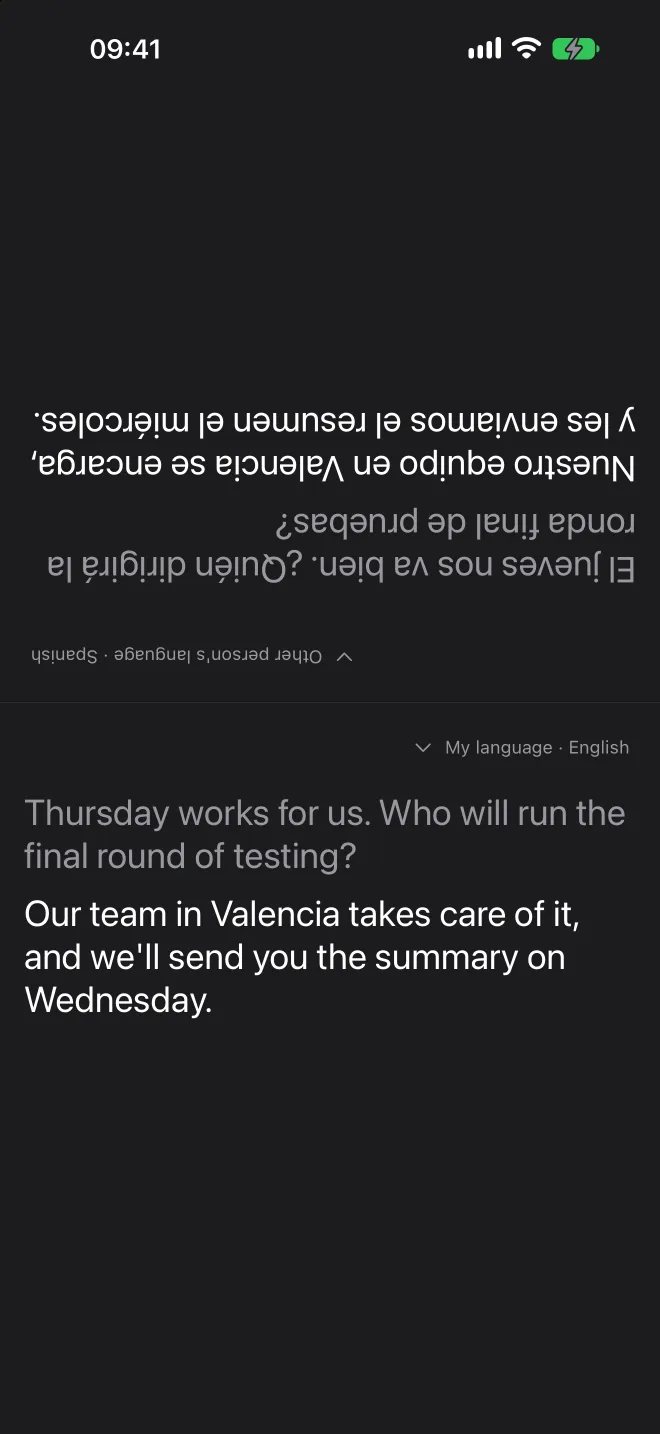
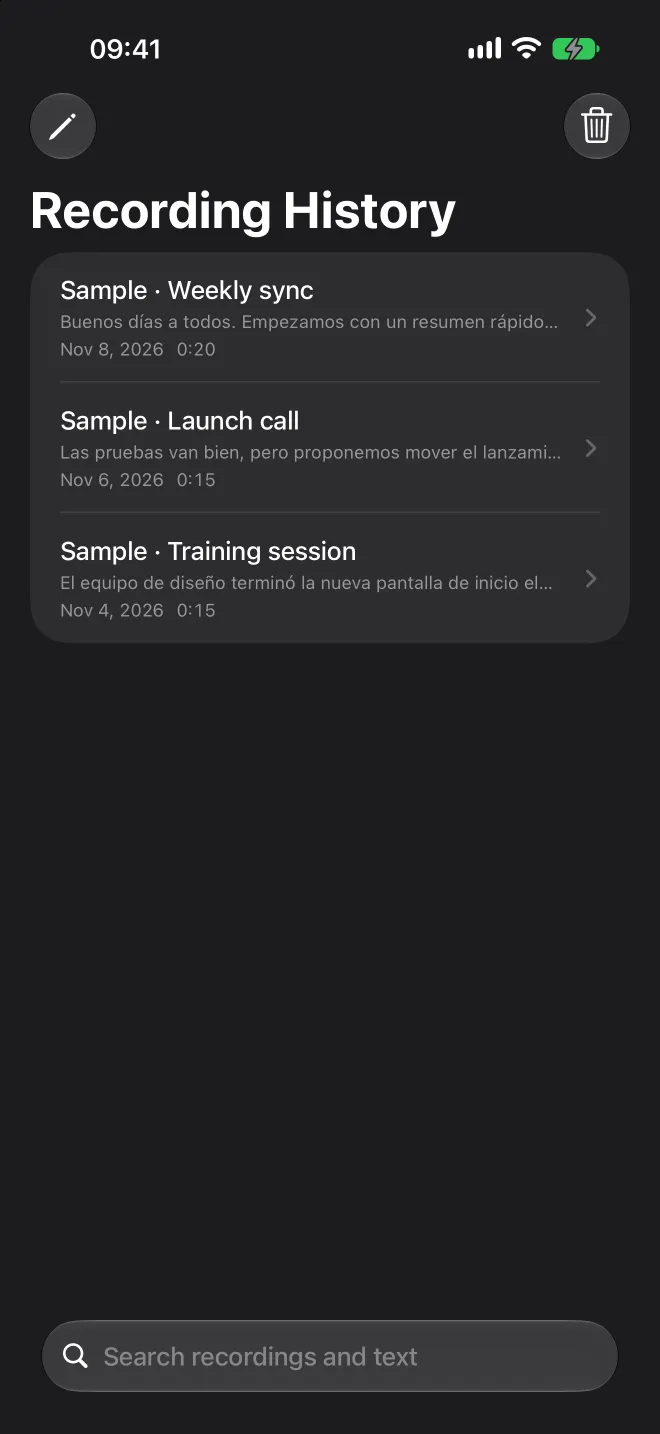
The iPhone app listens through the microphone, with Live Captions and Conversation Mode. Recording continues in the background and on the Lock Screen, and Recording History stays on your iPhone. It is in App Store review and not yet available for download.
Live Captions
The original and the translation appear sentence by sentence. Read both or expand one, and adjust the caption size.
Conversation Mode
The screen splits in two. Place your iPhone between you, and the top half faces the other person in their language.
Recording History
Search, rename and replay, read the original and translation together, and export M4A audio or TXT.
Recording continues in the background and on the Lock Screen; end it from the Live Activity
Recording History
Stored on this Mac; export audio and text
Stored on this iPhone; export M4A or TXT
Requirements
macOS 13 Ventura or later
iOS 18 or later
Status
App Store review in progress
App Store review in progress
Mac and iPhone share the subscription and its minutes on the same Apple purchase account. Recordings do not sync between devices.
08Plans
Pay for minutes, not features.
Every plan has the same live captions and translation. Only the minutes differ.
Free
US$0
45 min
every UTC calendar month
Personal
US$14.99 / month
600 min
per monthly billing period
Professional
US$29.99 / month
1,500 min
per monthly billing period
Advanced
US$59.99 / month
3,600 min
per monthly billing period
Prices are for the US App Store. Apple shows the price and currency for your region before you buy. Mac and iPhone share the subscription and its minutes on the same Apple purchase account. Transcribing and translating the same audio counts once, and unused minutes don’t roll over. Paid plans renew monthly through Apple until you cancel. Public App Store purchases are not available yet. TestFlight purchases use Apple’s test environment. Full terms →
FIG. 06“Recordings stay on your device · Live captions need internet”
09Your privacy
Your recordings stay on your device.
Recording history, audio tracks and exported files are stored only on the Mac or iPhone that made them.
Audio, recognized text and necessary context are processed online only while live captions and translation are on. Transfer is encrypted. Votel uses temporary processing buffers, not a cloud recording library.
Turn AI off at any time and later audio stays on your device. Turning it back on asks for your consent again.
Buy and restore through Apple, with no separate Votel account to create
Online service includes minimal usage and performance summaries without audio or caption content. The local cache expires within 24 hours; server aggregates expire after 28 days. Turning off online service stops collection.
Classroom Mode is for listening: one main speaker, with the translation in large type above the original. Conversation Mode is for talking: two languages in fixed left and right columns, so each person reads their own. Switch at the top of the window or in full screen. Stage Captions is for watching: click the Stage Captions button at the top right of the compact window and it becomes a wide strip along the bottom of the screen, showing large translated text on top of other apps. Use A− and A+ at the top right to change the subtitle size, and the button beside them to return to the compact window.
Does it work with Zoom, Teams and Google Meet?+
Yes. Votel captures the sound your Mac plays, so no bot joins the call. Choose System Audio for the other side, or Mic + System Audio to include your own voice. Votel doesn’t change your meeting app’s settings and doesn’t send captions or translations into the meeting. Not every app, device and permission combination has been verified, so make a short test recording first, and get participants’ permission before you record.
What audio can I record?+
The current app offers three sources: System Audio, Microphone, or Mic + System Audio together. Choose one from the waveform button at the bottom or in Settings › Audio. End a recording before changing sources, and allow access when macOS asks the first time.
The iPhone app records through the iPhone microphone only.
Which languages are supported?+
Votel translates into more than 100 languages and recognizes speech in about 80 languages and regional variants. The language menus in the app list every option, and Auto-detect works out which language is being spoken. Accuracy varies with the language, accent and audio quality.
Does it work without internet?+
Live captions and translation need internet. During an interruption, check whether local recording continues. The app attempts recovery, but cannot guarantee that every missing caption will be recovered. Pausing captions deliberately does not later transcribe the paused section. Saved recordings can be replayed and exported offline.
Where does my audio go?+
Votel processes and relays the selected audio, recognized text and necessary context using temporary in-memory buffers for transcription, translation and recovery. Votel does not provide a cloud recording library or persist an audio/caption archive, and request-body logging is not enabled. The necessary service records and operational aggregates below are separate from content processing. The AI provider handles data under its own terms. Session-resumption state may remain for up to 24 hours, and abuse monitoring may retain relevant prompts, context and outputs for 55 days. These provider periods are separate from the 28-day operational aggregate database and the local recording library. Privacy Policy.
Which devices does it run on?+
Mac: any Mac running macOS 13 Ventura or later, with Apple silicon or an Intel processor. iPhone: iOS 18 or later, currently in App Store review.
How much does it cost?+
Free gives you 45 minutes every UTC calendar month. On the US App Store, paid plans are US$14.99 a month for 600 minutes, US$29.99 for 1,500 minutes and US$59.99 for 3,600 minutes; Apple shows the price for your region. Every plan has the same features. See Plans. Public App Store purchases are not available yet. TestFlight purchases use Apple’s test environment.
How do I cancel?+
In the App Store on your Mac, open your account, choose Subscriptions › Votel and cancel there. Deleting the app doesn’t cancel the subscription. Refunds are handled by Apple. More in Help.
On iPhone, open Settings, tap your name, then choose Subscriptions › Votel to cancel.
How do I get started?+
On first launch, follow Privacy & AI and the sound-source setup. Mic + System Audio is the initial default; you can choose either source alone. Complete only the permissions for your choice, then select languages and press Start Recording & Captions or Space. Setup does not start recording automatically. Replay a short test before your call. See Help.
On iPhone, choose Live Captions or Conversation Mode and set the languages, then read the online processing notice and agree to start. When you’re done, choose End and Save.
Hear it. Read it. Keep it.
Votel 1.0 build 24 is being tested through TestFlight. App Store review is in progress; public release has not started. The iPhone app is also in App Store review.
 Votel