 Votel
Votel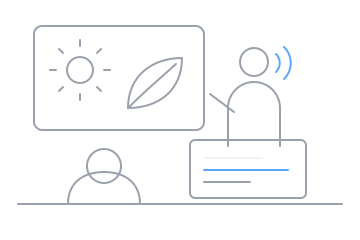
Classroom Mode · Microphone
Lectures and lessons
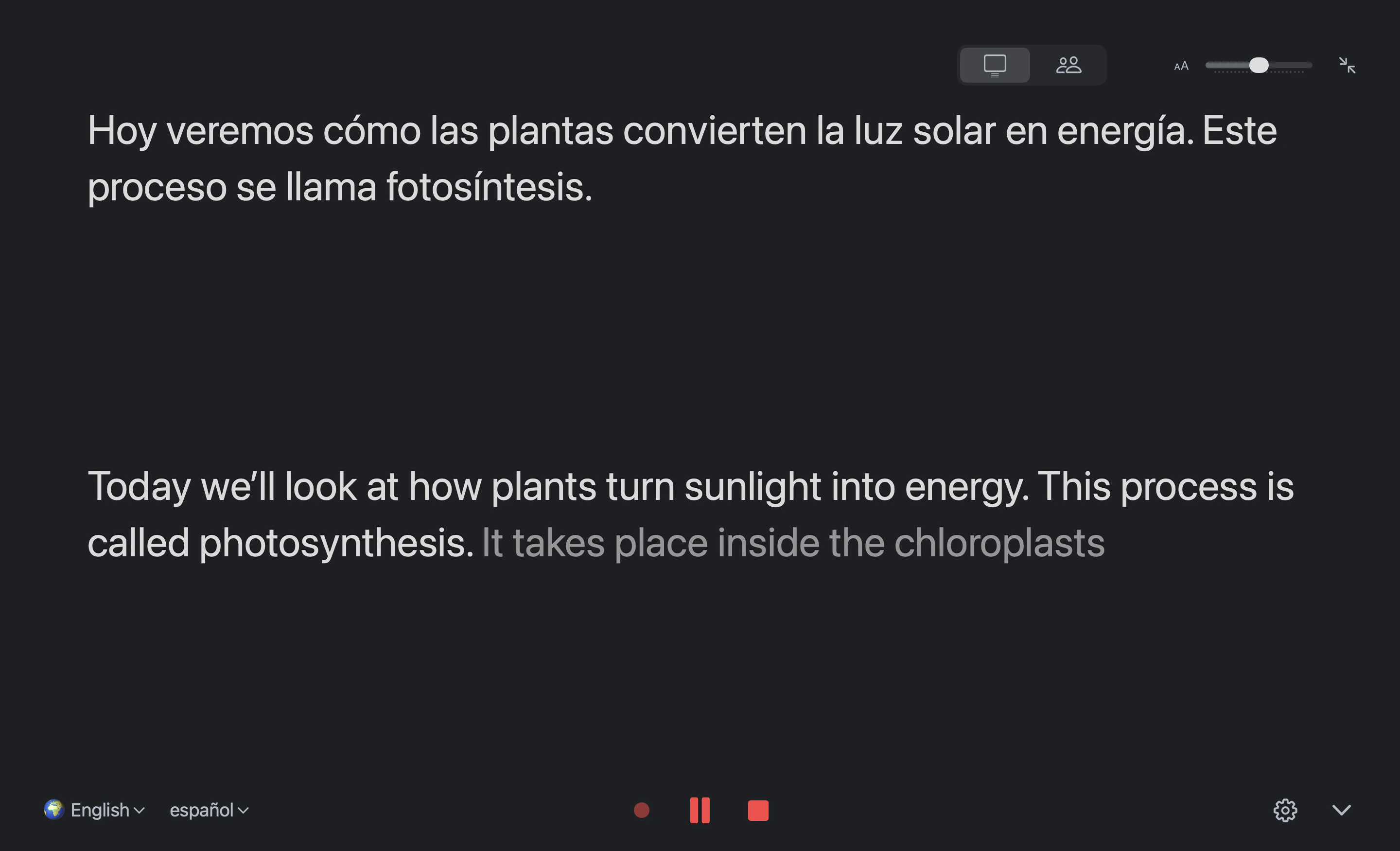
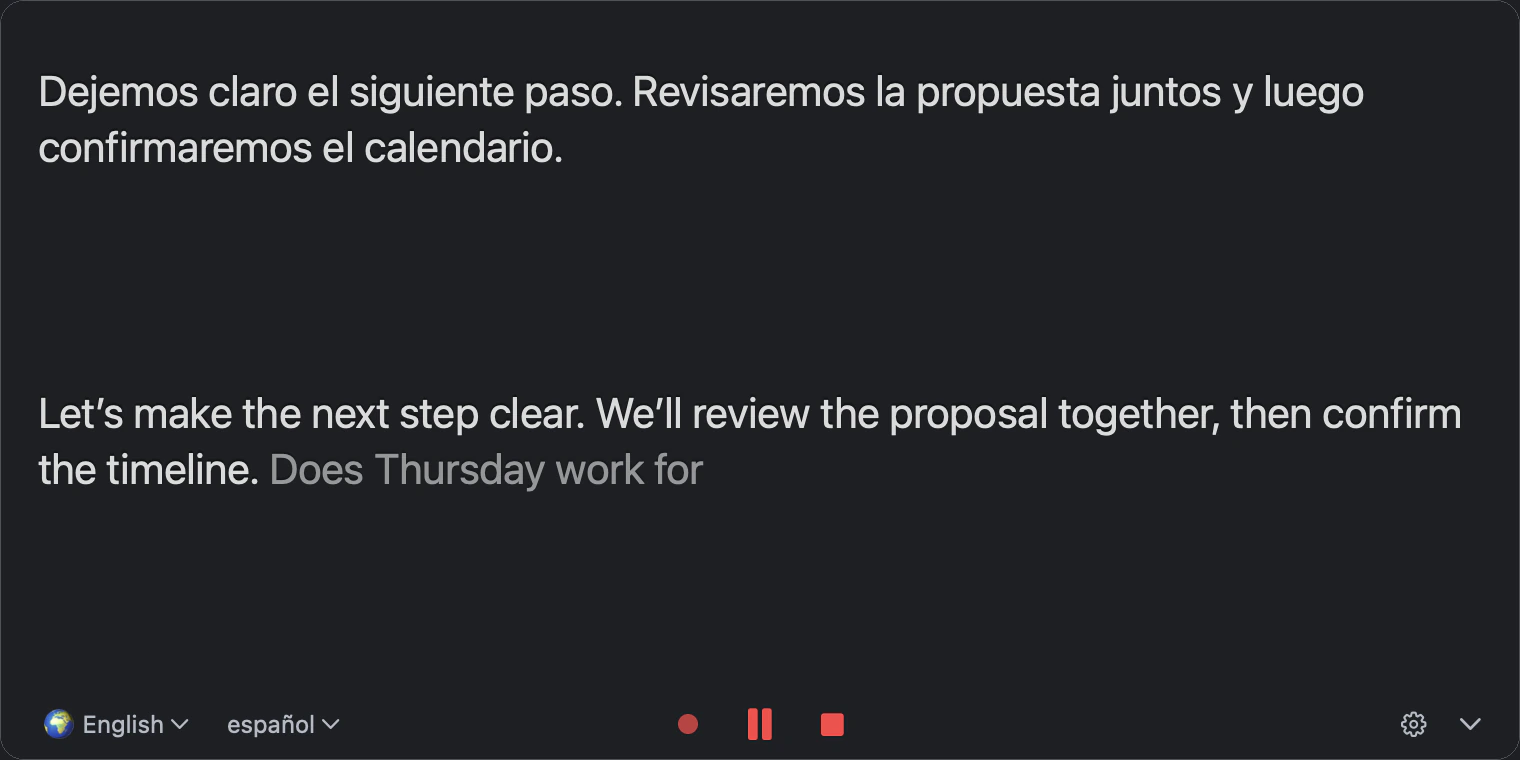
Put the Mac on the desk, switch to Classroom Mode and go full screen. The translation stays large on top while the original keeps coming in below.

Votel for Mac · Development preview
Votel turns speech into live captions and translation on your Mac.
Full screen for the classroom, side by side for a conversation, saved locally for later.
Real app views · Full-screen Classroom Mode and Conversation Mode · Example text
Where it helps
Classroom Mode · Microphone
Put the Mac on the desk, switch to Classroom Mode and go full screen. The translation stays large on top while the original keeps coming in below.
Conversation Mode · Microphone
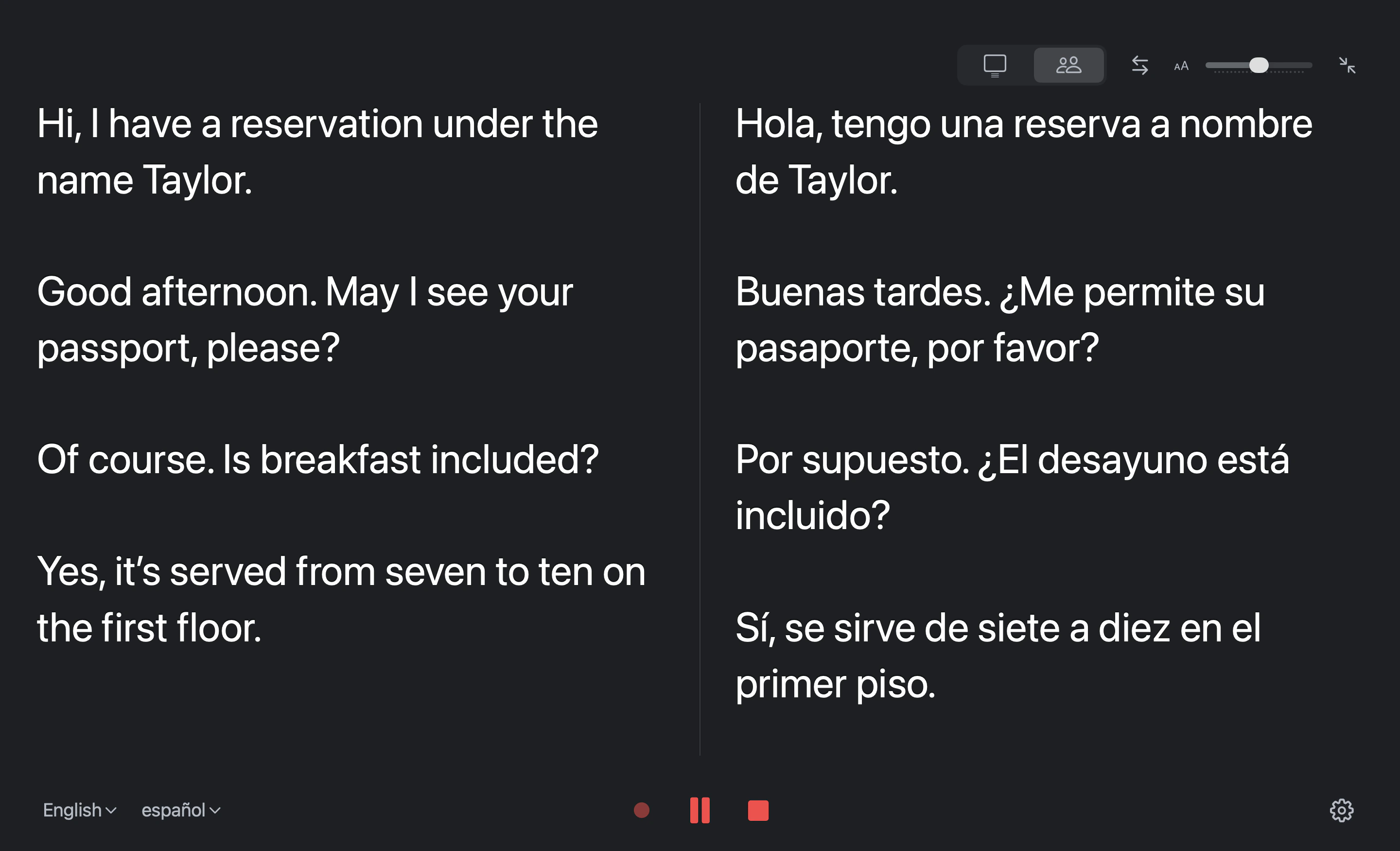
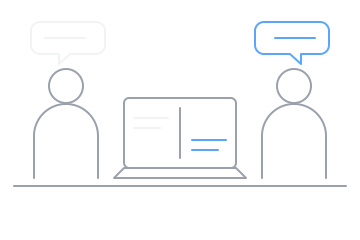
At a hotel desk, a shop counter or a study group. Each language gets its own column, so both people can read along. Swap sides when you turn the screen.
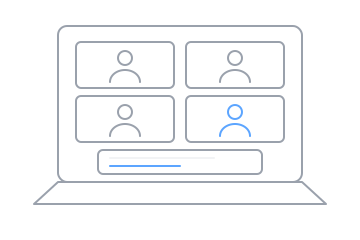
Microphone & System Audio
Capture the call and your own voice together, with live captions beside the meeting window.
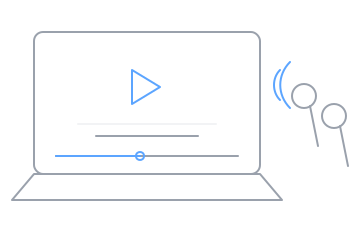
System Audio
Follow a talk, a course video or a podcast playing on your Mac, in your language.
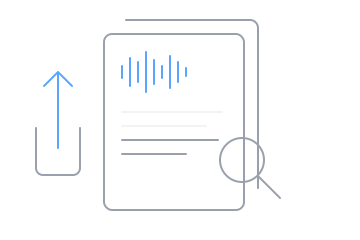
Recording History
Every session is saved on your Mac. Replay it, read it side by side, and export M4A audio or TXT text.
NewFull-screen Classroom Mode
The translation sits on top in large type; the original keeps flowing underneath. Press ⌃⌘F to fill the screen, then drag the size slider until it reads well from the back row.
NewFull-screen Conversation Mode
Each language keeps its own column. Whoever speaks, the line shows up on both sides, each in its own language. Turn the Mac toward the other person and swap sides with one click.
Compact window
The regular window keeps the same order, translation above and original below, so it can sit next to a meeting or a video.
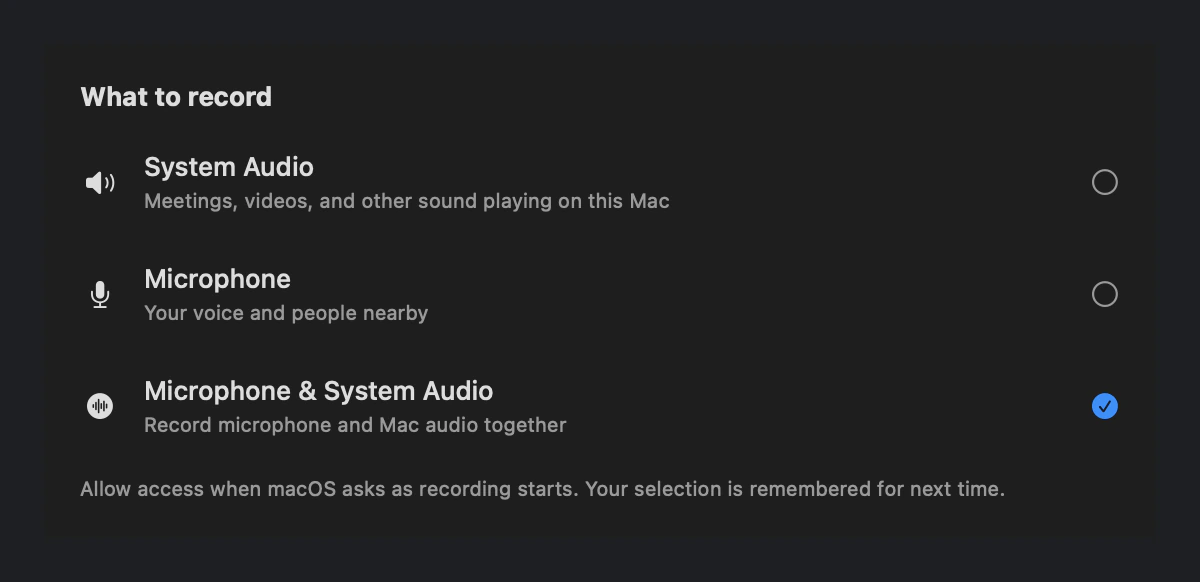
Three audio sources
System Audio captures meetings, videos and anything else playing on your Mac. Microphone captures your voice and people nearby. Choose Microphone & System Audio when you need both. macOS asks for access the first time you record.
Audio setup & troubleshooting →Recording History
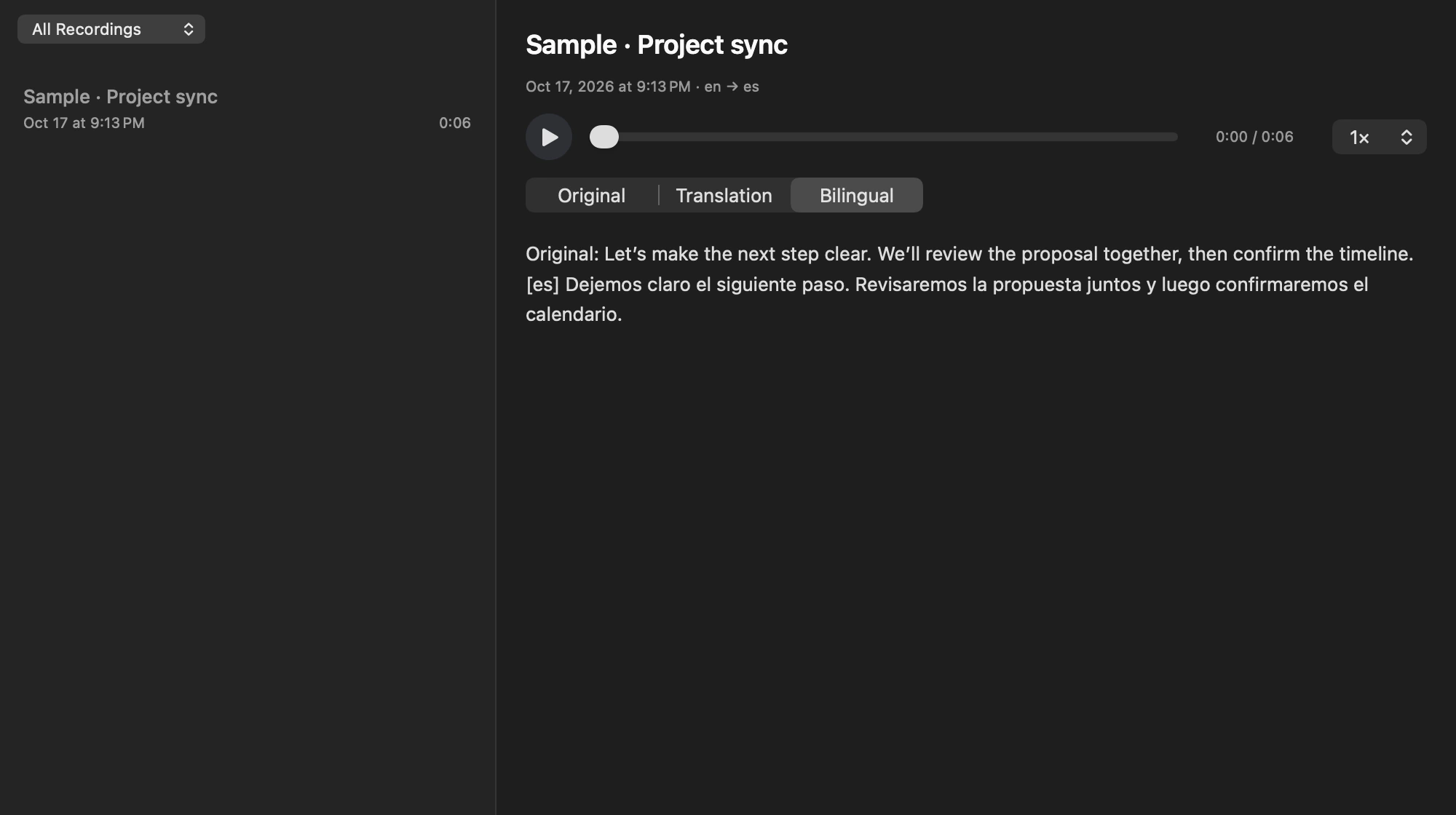
Press ⇧⌘H to open Recording History. Replay the audio at your own speed, switch between Original, Translation and Bilingual, then export what you need.
Getting started
Open Settings › Audio Source. Pick System Audio, Microphone or both, and allow access when macOS asks.
Choose Classroom Mode or Conversation Mode, set the languages and start recording. Press ⌃⌘F for full screen. Live transcription and translation need a connection and your explicit consent.
Press the square button to finish and save. Press ⇧⌘H for Recording History to replay or export M4A and text.
For your first session, make a short recording and replay it to confirm the sound you need was captured.
Your recording. Your choice.
Audio, caption history and exports are stored locally. Live transcription and translation use online processing, separately from your local recording library.
Questions
Classroom Mode is for listening: one main speaker, with the translation in large type above the original. Conversation Mode is for talking: two languages in fixed left and right columns, so each person reads their own. Switch at the top of the window or in full screen.
The current app offers three sources: System Audio, Microphone, or Microphone & System Audio together. End a recording before changing sources, and allow access when macOS asks the first time.
Choose Audio Source in Settings, pick a mode and your languages, then start. Make a short test recording first and replay it to confirm the sound. Detailed steps and troubleshooting are in Help below.
Public downloads are not available yet. These instructions describe the current test build; use the controls shown in the build you received.
Open Settings, then Audio Source. Choose Microphone, System Audio, or Microphone & System Audio. Follow macOS permission prompts when starting. End the current recording before changing sources.
Select the spoken and translated languages in the main window. Use automatic detection if unsure of the spoken language. Press Play, read the consent prompt and choose whether to enable live transcription and translation. Live captions need connectivity; recording can remain local when live processing is off.
Press the square Stop button to end and save. Open Recording History (⇧⌘H), select a recording and replay it. Use Export for M4A audio, original TXT, translated TXT or All files. End an active recording before exporting it.
Set the microphone and speakers separately in your meeting app. Votel does not change those settings or send the translation to other participants as speech. Make a short test recording, stop and replay it to check that the sound you need was captured.
Pause Live Captions pauses online processing while recording continues locally. To stop capturing sound, use Finish and Save Recording (the square Stop button). If connectivity or minutes run out, check for the Recording locally status. Missing captions are not automatically filled in when you export.
Subscriptions use Apple. Restore with the store identity associated with the purchase. Never send passwords, verification codes, receipts or signed transactions. Preserve original recordings when troubleshooting; avoid repeatedly clearing app data or Keychain credentials.
Test participants should use their original invitation channel. Include the app and macOS versions, selected audio source, steps and time. Builds with Help & Diagnostics can generate a support code valid for seven days and copy a redacted summary. The code cannot sign you in. Unnecessary recordings and captions are not needed.
Support and privacy contact: voteldeveloper@gmail.com (Votel Support). Downloads, regions and final subscription terms will be confirmed before public release. Not every country, device or meeting-app combination has been verified.
Votel is in development. This page describes current processing and its limits. The formal privacy policy and operating-entity details must be completed before public launch. Sales are not open.
Recorded audio, caption history and exported files are local. Manage and delete recordings in the library. Exported copies, system backups and other copies remain under your control. Recently Deleted is not secure erasure.
Live transcription and translation require explicit consent. Audio, recognized text and necessary context are sent for online processing to provide transcription and translation.
You can turn AI off in Privacy & AI. Future audio continues recording locally while transcription and translation stop. This does not undo earlier cloud processing.
Optional request logging is currently disabled. Session resumption state may remain for up to 24 hours. Abuse monitoring may retain relevant prompts, context and outputs for 55 days. These exceptions are separate from optional request logs.
Votel keeps the account, subscription, usage and purchase records needed to provide the service. Detailed usage has a 30-day cleanup target; support codes last seven days. To understand service use, we aggregate pseudonymous usage identifiers, live audio delivery volume and country-level origin. These statistics contain no audio, caption content or full IP address, and we do not collect precise location. We also use the creation date of new service identities and the first subsequent acknowledged display to understand the initial service experience. Aggregates last 90 days; minimal date and confirmation markers remain with the service identity and are included in its deletion workflow. To understand repeat use, we separately record the first date an online result is sent and the first date a view update is acknowledged, plus whether the corresponding event occurs again on day 1, 7 or 30. Detailed activity dates have a 30-day cleanup target and aggregates last 90 days. The minimal first-date and return markers remain with the service identity and are included in its deletion workflow. Server-result return statistics do not confirm that a result was displayed; view-acknowledgement returns only mean that the client reported an updated view. Versions that support this feature also report view-update acknowledgements and waiting times for captions or translations to check that the feature works. These acknowledgements contain no caption text and do not prove that you read the content; detailed observations have the same 30-day cleanup target. Financial records, backups and historical copies are not promised immediate deletion.
Purchases and restoration use Apple. Votel does not receive Apple passwords, card numbers or full payment details. An extra Votel account is not required.
This site has no advertising, third-party analytics scripts or collection forms. Basic request and security information may be processed to operate and protect the website.
For support and privacy questions, email voteldeveloper@gmail.com (Votel Support). Test participants should use their original test contact channel. Do not send passwords, login tokens or unnecessary recordings and captions.
Votel for Mac · Public download in preparation
View current release status →